Learning how to build a course in Moodle is like going through a tutorial in a game before you start a story. This step is the key to your success. It’s better to learn all the nuances of creating a course now than when enrollments are about to open. Believe us, this way you will keep more nerve cells intact.
Moodle is so popular in academic and corporate learning that today users from over 200 countries are launching or studying courses on this platform.
As a course admin, you can assemble a learning flow from modules — activities, resources, grading, and tracking. And at this stage, there is news: all the actions do not require writing any code. Since Moodle supports a modular structure, you can create short courses for onboarding, recertification, and fast product updates. Everything is in your hands, as they say.
We created this guide because building courses on the Moodle platform is part of Raccoon Gang’s services, and we see at what stages our customers get stuck when trying to implement a course independently. We suggest you take a look at the step-by-step roadmap of the most common course production setup.
Your guaranteed insights from this guide:
- What does the step-by-step process of creating a course in Moodle look like?
- What do you need to do on the platform to add a course quickly and correctly?
- What are the best practices for building a Moodle course, and what are the main mistakes most administrators make?
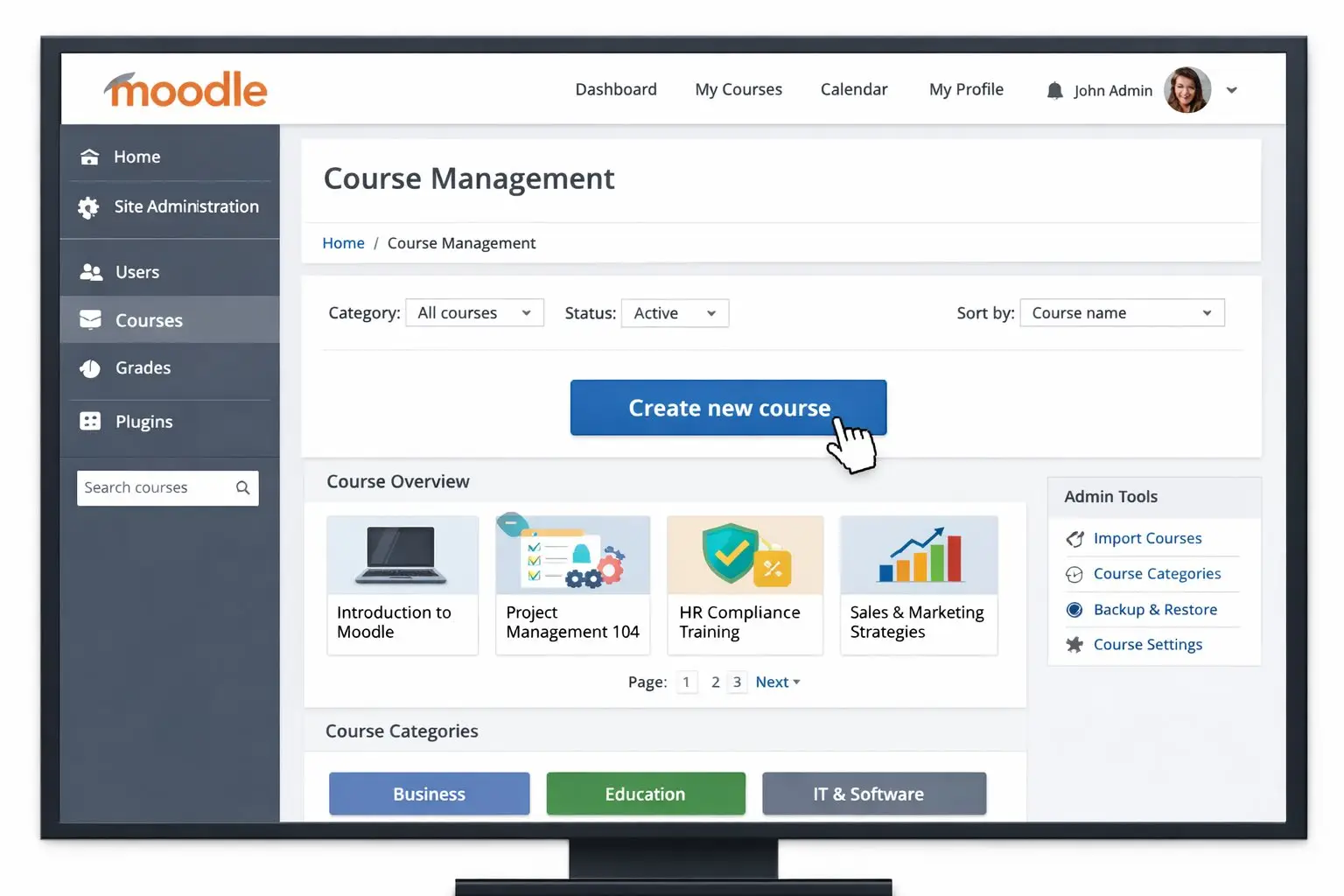
Course management screen in Moodle where administrators create and manage new courses
What You Need Before You Create a Course in Moodle
Before we look at the step-by-step process of creating a course in Moodle, let’s quickly review what you need to do before choosing a format and adding content and users.
Below we have listed 4 recommended pre-steps to follow:
1) Access check
This may sound trite, but many courses end before they even start because of this. Make sure you have site administration access or a teacher role. If you do not have this level of access yet, course creation functionality is not available to you.
Confirm you can:
- Create a new course inside a category
- Edit course settings
- Add activities and resources
2) Course topic or syllabus
At this step, we strongly recommend writing a simple course brief. This initial step will save you time when setting up the course in Moodle. However, for Moodle short courses, pick the main assessment first (quiz/assignment). Then build backward.
Define:
- Topic + audience (who this is for)
- 3–7 outcomes (what learners can do)
- A rough content map (sections + key activities)
3) Course format selection
Next, pick the format. Only after that should you build content inside it.
Choose based on how learners move:
- Weekly format → dates and deadlines drive progress
- Topics format → self-paced or modular learning
- Single activity → one exam, one SCORM package, one assignment
- Social format → discussion-led learning (less common in corporate)
“6 out of 10 course setup issues we debug later come from skipped basics — access rights or course format. Every minute you spend checking these upfront беззаперечно saves your hours after launch.”
— Moodle consultant at Raccoon Gang.
4) Default site settings that influence new courses
Some “course problems” start at the site level.
Check what your site defaults enforce:
- Completion tracking and activity completion rules
- Gradebook settings (aggregation, categories)
- Enrollment methods and self-enrollment policies
- Role permissions (what teachers can edit)
- File size limits and media handling
If a setting surprises you later, it often came from here.
How to Build a Moodle Course: Step-by-Step
So, let’s start creating a course. We hope you have already made sure that you have one of these accounts (Administrator, Manager, or the special role of Course Creator). After all, they allow you to create a course, unlike teacher rights, which do not.
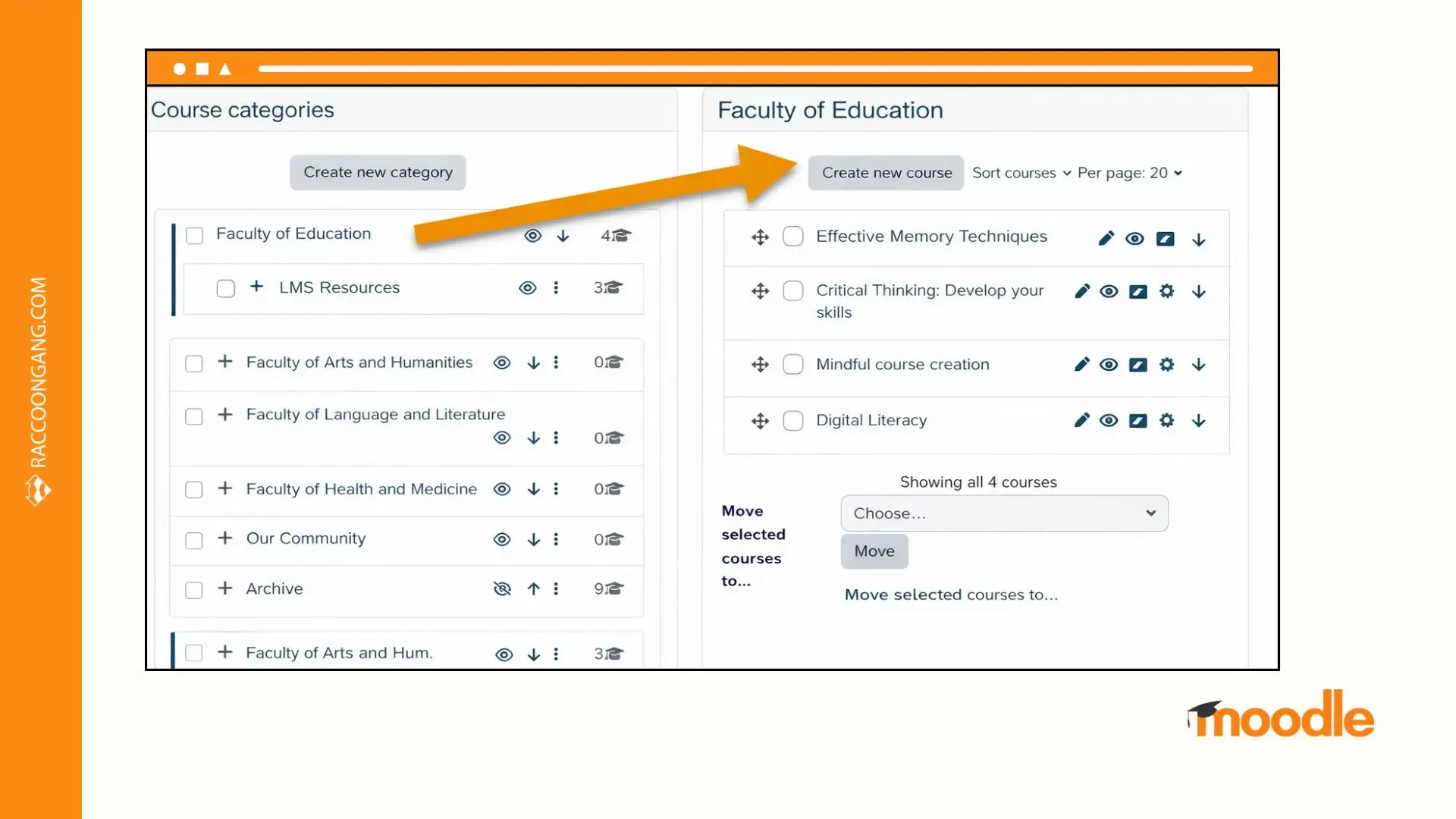
Selecting a course category and clicking “Create new course” in the Moodle administration panel
Step 1: Log In and Access Course Management
Log in to Moodle using an account with course creation rights. After login, open the Administration menu and follow this path:
- Courses → Course and category management
This section controls where courses live and who can create them (documentation).
Next, select the category where the course should sit, such as a faculty, department, or internal academy. In large Moodle setups, categories act like folders with rules attached. If your site has many categories, you may first need to open Course management and choose the correct section. Only then will the Create new course button appear.
Click Create new course to continue. This action opens the course settings page, where you define the core parameters. At this point, how to add a course in Moodle becomes a structured process.
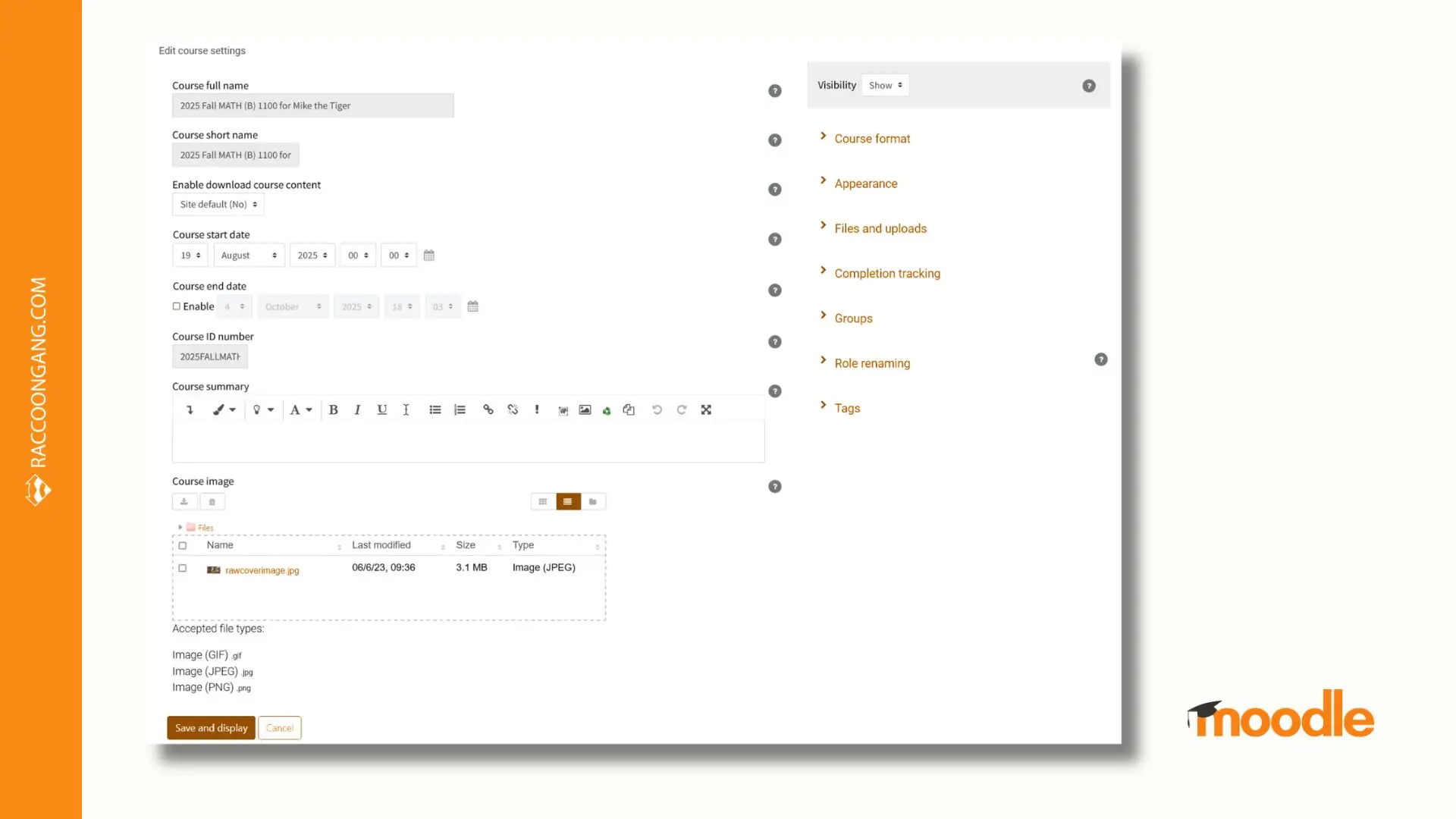
Moodle course settings page showing how to configure course name, dates, visibility, and summary
Step 2: Configure General Course Settings
Let’s not lose momentum and move on. After you click Create new course, Moodle should show you the course settings page. Start in the General section, because Moodle uses these fields everywhere: course lists, dashboards, search, and reports.
First, enter the Course full name. Your learners will see it as the main course link on the site home and in the dashboard. Enter the Course short name. Moodle uses the short name in navigation, page titles, and places where the full name won’t fit.
The short name must be unique, and Moodle will show an error if you reuse it. Also, fill in both name fields, because Moodle won’t save the course without them.
After that, confirm the Category from the list. If you’re unsure, leave the default for now or confirm the correct category with your administrator.
Then set Course visibility. Keep the course Hidden while you build it. A hidden course won’t appear in course lists, and learners can’t open it even with a direct link. Switch visibility to Shown only when content, roles, and tracking are ready.
- Create course → General settings → Description → Save
Finally, open the Description section and add a short course summary. This text appears on category pages and in search. Don’t forget to add a cover image. Moodle typically accepts image files such as JPEG, PNG, or GIF here.
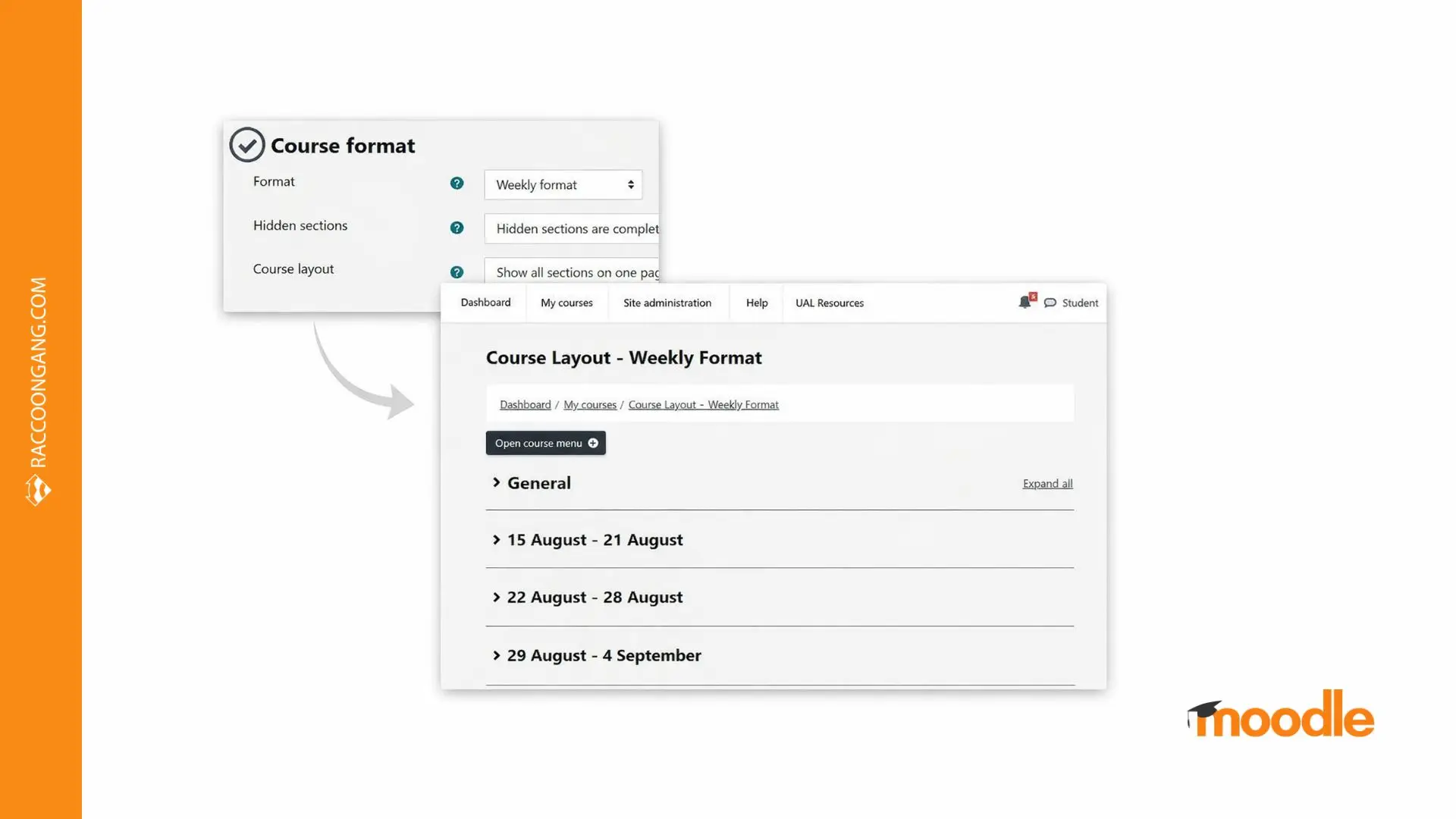
Selecting the weekly course format in Moodle and previewing how sections appear by date
Step 3: Choose the Course Format
After you finish the general settings, choose the course format. This setting defines how learners move through the course and how easy it will be to maintain later.
Changing the format after content is added is possible, but it often breaks section order and links. For that reason, decide on structure before you upload activities or files.
| Course format | Best used when | Typical use case |
| Weekly | Learning follows a schedule | Cohort-based training, semester courses |
| Topics | Learning is self-paced | Internal academies, knowledge bases |
| Single activity | One task matters most | Exams, certifications, SCORM modules |
| Social format | Discussion drives learning | Peer learning, moderated communities |
For short, focused programs, Moodle short courses work best with micro-course setups built on Topics or Single activity formats. They keep navigation simple and completion easier to track.
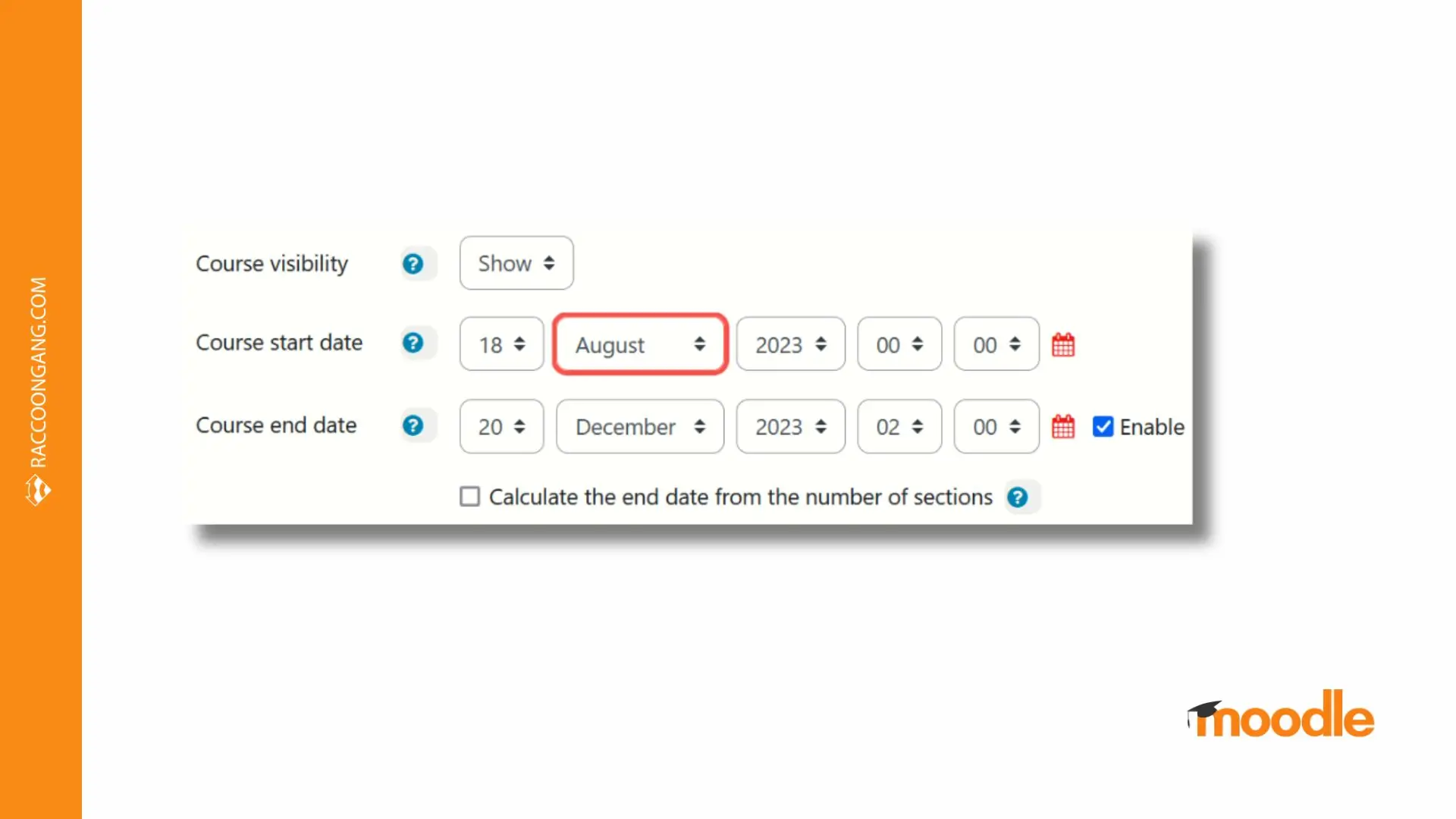
Configuring course visibility and start and end dates in Moodle course settings
Step 4: Set the Course Start and End Dates
In General settings, set the Start date and End date. These dates don’t just sit in settings. They affect weekly section labels, dashboards, and reporting views.
| Setting | What it controls | Watch out for |
| Start date | Weekly section dates and pacing | Update it after copying a template |
| End date | Moves course to “Past courses” | It does not block access |
“We often see weekly courses drift because the start date was copied from a template and never updated,” says a Moodle specialist at Raccoon Gang. “That breaks week labels and confuses learners. Another common issue is analytics — reports filtered by date range can silently exclude active learners if the end date is set too early.”
If you use a weekly format and your timeline may change, consider Calculate end date based on number of sections. Moodle will adjust the end date as you add or remove weeks. Disable it if you want full manual control.
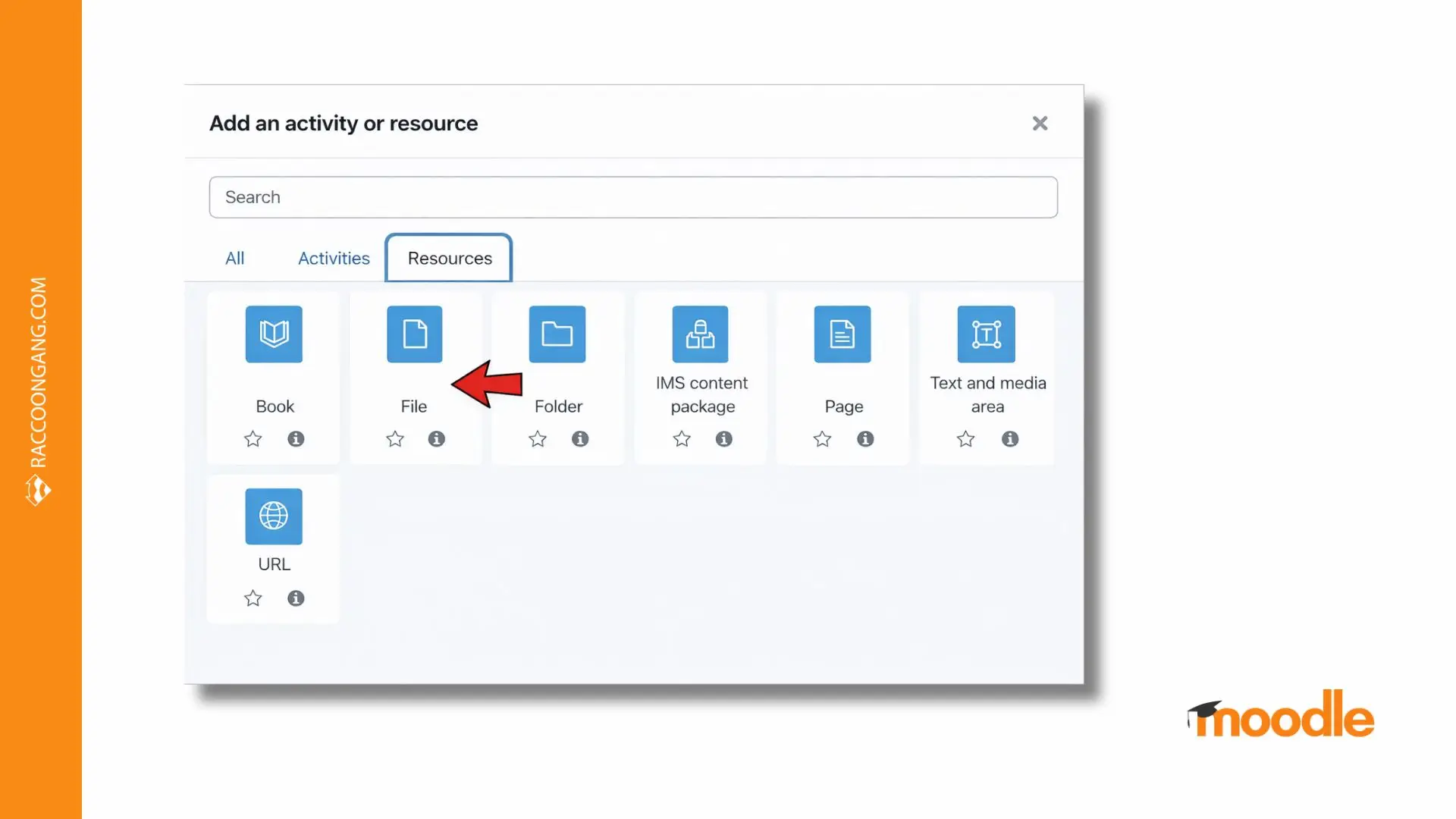
Using the “Add activity or resource” menu in Moodle to add files, pages, and other learning materials
Step 5: Add Activities and Resources
It’s time to start filling sections of the course with content. In Moodle, you can work with two building blocks:
- resources (what learners read or watch)
- activities (what learners do, submit, or get graded on)
Most teams actually use these “major types” in production. That covers 80–90% of real Moodle courses, especially for corporate training, onboarding, compliance, Moodle short courses and micro-courses.
- Assignments
- Quizzes
- SCORM packages
- H5P
- Files, pages, labels
First, turn on editing. On the course page, click Turn editing on (or Edit) in the top-right corner. In Moodle 4, the button is easy to spot, and you’ll see add controls appear inside each topic section.
In the section where you want to add content, click Add activity or resource. Moodle opens the Activity chooser, where items are grouped into Activities and Resources tabs (you can also view all).
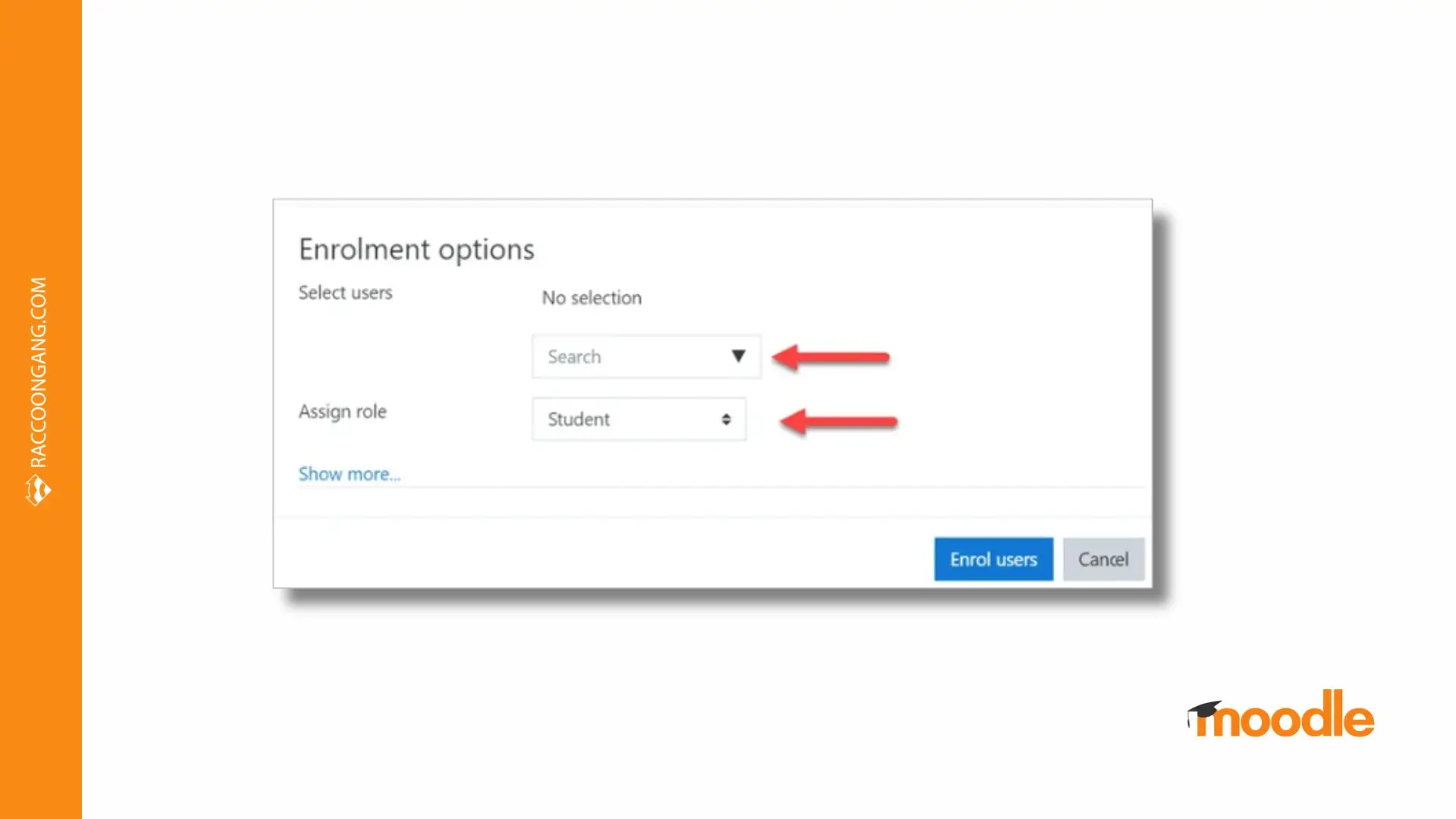
Adding learners to a Moodle course and assigning roles such as student or teacher
Step 6: Add Learners and Roles
Congratulations, you have reached the finish line. Now that the course structure is ready, it is time to add learners. In your case, this could be students, teachers, or assistants. For your information, in Moodle, this process is called enrollment.
| Task | Where to click in Moodle | What to watch for |
| Open participant management | Course menu → Participants | You’ll see only yourself (and admins) at first |
| Enroll users manually | Participants → Enrol users | You can add only users who already have accounts |
| Assign the right role | Role dropdown inside Enrol users dialog | Wrong roles cause “I can’t see/edit” complaints |
| Add co-instructors safely | Select Teacher or Non-editing teacher | Use Non-editing teacher for graders and tutors |
| Enable self-enrollment | Course settings → Enrolment methods → Self enrolment | Use an enrolment key and share it carefully |
| Scale enrollment | Cohort sync (if your site uses cohorts) | Best for departments and recurring programs |
| Organize learners | Participants → Groups | Groups help with grading, forums, and cohort-based delivery |
Role cheat sheet (course level):
- Teacher: can edit course content and settings.
- Non-editing teacher: can grade and moderate, but can’t change content.
- Student: can access activities and see their own grades.
- Guest: read-only access (requires Guest access enrolment method).
If someone says they can’t see the course, check three things: course visibility, enrolment status (Active), and role.
“Once you enroll dozens of learners, manual adds become a time sink,” says a Moodle admin. “Use bulk upload or self-enrolment with a key, and share that key only with your cohort.”
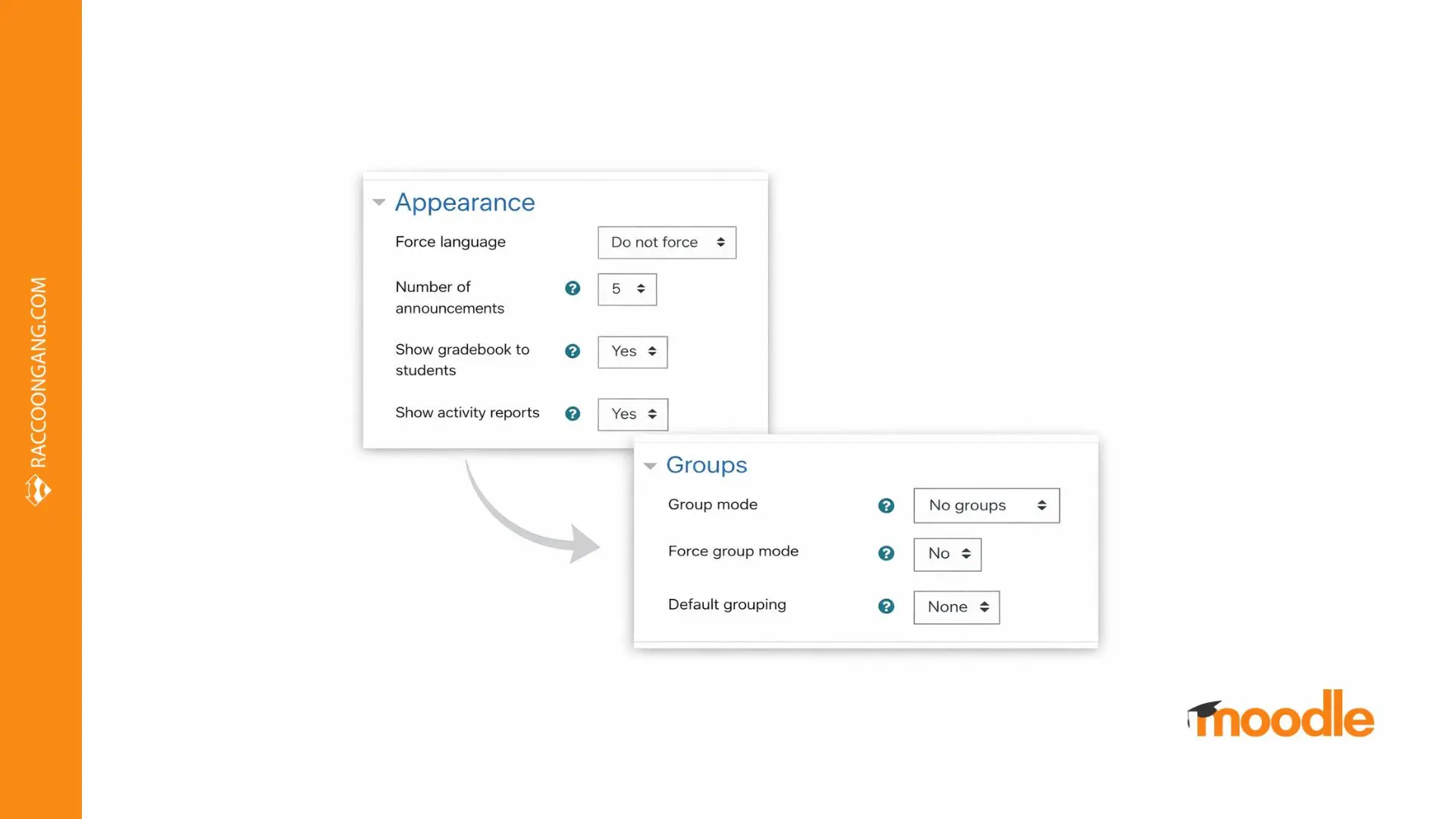
Adjusting appearance options and group mode settings to control visibility, grading, and learner segmentation in Moodle
Step 7: Fine-Tune Course Settings
Once content and users are in place, fine-tuning turns a draft into a working course. This is where Moodle create course setups either stay predictable or start drifting.
| Setting | Where in Moodle | What to do (practical) |
| Announcements + homepage clutter | Edit settings → Appearance | Set Number of announcements to 3–5 if you’ll post updates. Set it to 0 if you won’t, so the “Latest announcements” block doesn’t take space. The Announcements forum stays in the course either way. |
| Completion tracking | Edit settings → Completion tracking | Turn it on, then set completion rules per activity (view, submit, score). Track only what you report on. |
| Activity restrictions | Inside each activity: Restrictions / Restrict access | Gate items by date, completion status, or grade. Keep rules simple so learners don’t hit “locked” screens. |
| Gradebook | Appearance + Course administration → Gradebook setup | In Appearance, check Show gradebook to students. Keep it on when grades matter; turn it off for info-only courses to reduce confusion. |
| Badges | Course administration → Badges | Issue badges only for clear milestones (course completion, pass score). Connect them to completion rules so they award automatically. |
| Groups | Edit settings → Groups + Participants → Groups | Set Group mode (Separate/Visible) if you run cohorts. Use Force group mode when most activities should follow that split. |
| Backup / restore | Course administration → Backup / Restore | Create a “clean” backup after setup. Use it as a template for the next run instead of rebuilding. |
Two expert checks before launch:
- Set completion rules for the activities that matter most. Don’t track everything.
- Preview as a student to catch hidden sections and locked items.
Best Practices for Building an Effective Moodle Course
Here, we would like to add a little of our own point of view. Knowing how to build a Moodle course is only half the way. Always pay attention to student behavior in practice. No doubt, it will give you more ideas for improving your courses. And to reach the minimum required level, there are always best practices.
Content in the form of short units has defeated long reads
Remember TL;DR, and split your content into sections with one goal each. A good practice here is to keep 5–10 minutes per unit, no more.
Multimedia as the new god
Only the right proportion of text and short videos, visuals, or audio will keep your course from being skipped or clicked through on autopilot.
Use H5P for interaction, where it fits
Feel free to enrich your course with quizzes, branching scenarios, or interactive videos using H5P.
Structured assessments have always been in high regard
Building content backward helps you integrate quizzes and assignments before adding theory.
Gamify what is gamified
Every badge, completion rule, and progress bar you add can make the course more appealing to learners.
Don’t forget about mobile devices
Supporting mobile learners is extremely important for reach today. Keep layouts and file sizes mobile-friendly.
Keep an eye on accessibility
When you avoid color-only cues, you meet accessibility standards and improve the experience for the whole cohort. When you don’t forget about alt text, captions, and clear headings, it’s a big deal for your learners.
Common Mistakes When Creating Moodle Courses
- Overloading sections. It is a bad idea for admins to pack one section with too many activities. Learners could lose orientation and most likely skip tasks.
- Poor navigation. Missing labels and inconsistent naming slow progress.
- Incorrect role assignments. Some users can edit content they shouldn’t. Others can’t access activities they need to finish.
- Not enabling completion tracking. Teams forget to enable completion tracking at the course or activity level.
- Not using groups for scaling. Admins enroll everyone into one group by default. Grading and communication turn manual. Groups prevent this once cohorts grow beyond a few dozen learners.
How Raccoon Gang Helps Build, Optimize, and Scale Moodle Courses
Our e-learning experts with 10+ years of L&D background deliver end-to-end Moodle LMS services you can choose:
- Custom Moodle development
- Course design services
- UI/UX improvements
- Hosting and scaling support
- SCORM/H5P integration
- Migration and upgrades
Conclusion
Congratulations! Your online course in Moodle is created! 🎉 Now you can start learning. We tried to cover every necessary step along the way. We also hope this material will be useful for you and save you time and mental health.
Actually, course creation is somewhat similar across different LMSs, especially when we talk about open-source platforms. In our other material, we compared Open edX and Moodle and found a lot in common.
At least the basics give you orientation. Instead of clicking around, you move through Moodle with intent, knowing which settings matter and which you can ignore.
And if you need help, you can always contact us. And, of course, official Moodle documentation is available for you.