What is Canvas LMS in practical terms? It’s an online software that schools, universities, and colleges use to manage their digital learning operations.
The platform has gained significant adoption in education because it addresses core teaching requirements — course organization, assignment management, grade tracking, communication systems — while running completely in the cloud without requiring institutional server infrastructure.
This guide explains how Canvas works, what it provides, and whether it’s appropriate for your organization.
Before going further, let’s address a common confusion: Canvas and Canva are different products. Canva is a graphic design application. When educators mention Canvas, they’re referring to software built specifically for managing academic courses and institutional learning activities.
TL;DR
- Canvas LMS is a cloud-based platform where instructors create courses, students access materials, and administrators manage institutional operations.
- It works through modules, assignments, quizzes, and discussions — this gives educators full control over course structure, content delivery, and student assessment.
- Canvas supports five standard user roles — Student, Teacher, Teaching Assistant (TA), Designer, and Observer — each with its own set of permissions.
- It integrates with hundreds of third-party tools through LTI standards, from video conferencing to plagiarism detection.
- It works best for traditional course structures — schools with competency-based or highly customized programs may need additional tools alongside Canvas.
What Is Canvas LMS?
Canvas LMS is a web-based learning management system built by Instructure. It’s a platform that lets institutions manage digital learning, gives educators the tools to create course materials and assess students, and allows learners to engage with courses and get feedback on their progress and skill development.
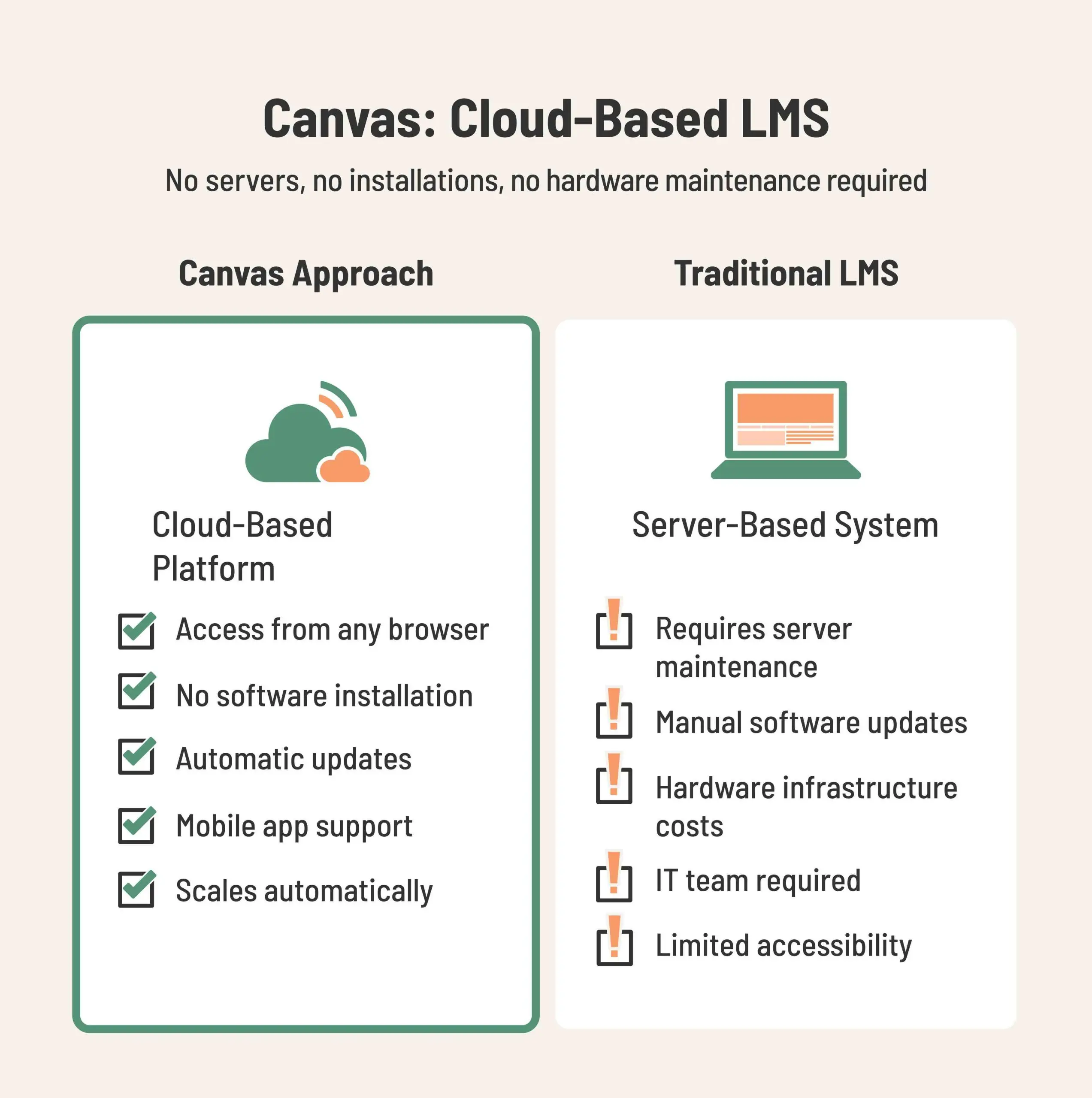
Canvas for education lives entirely in the cloud, so organizations skip the server maintenance and software installation headaches. Everyone accesses it through standard web browsers or the mobile apps.
The Canvas learning management system differs from generic online learning platforms in a fundamental way: it’s designed around academic workflows. Generic tools offer broad features but don’t account for institutional requirements. Canvas software education features handle the specifics — course structures, grading systems, enrollment management, and academic calendars.
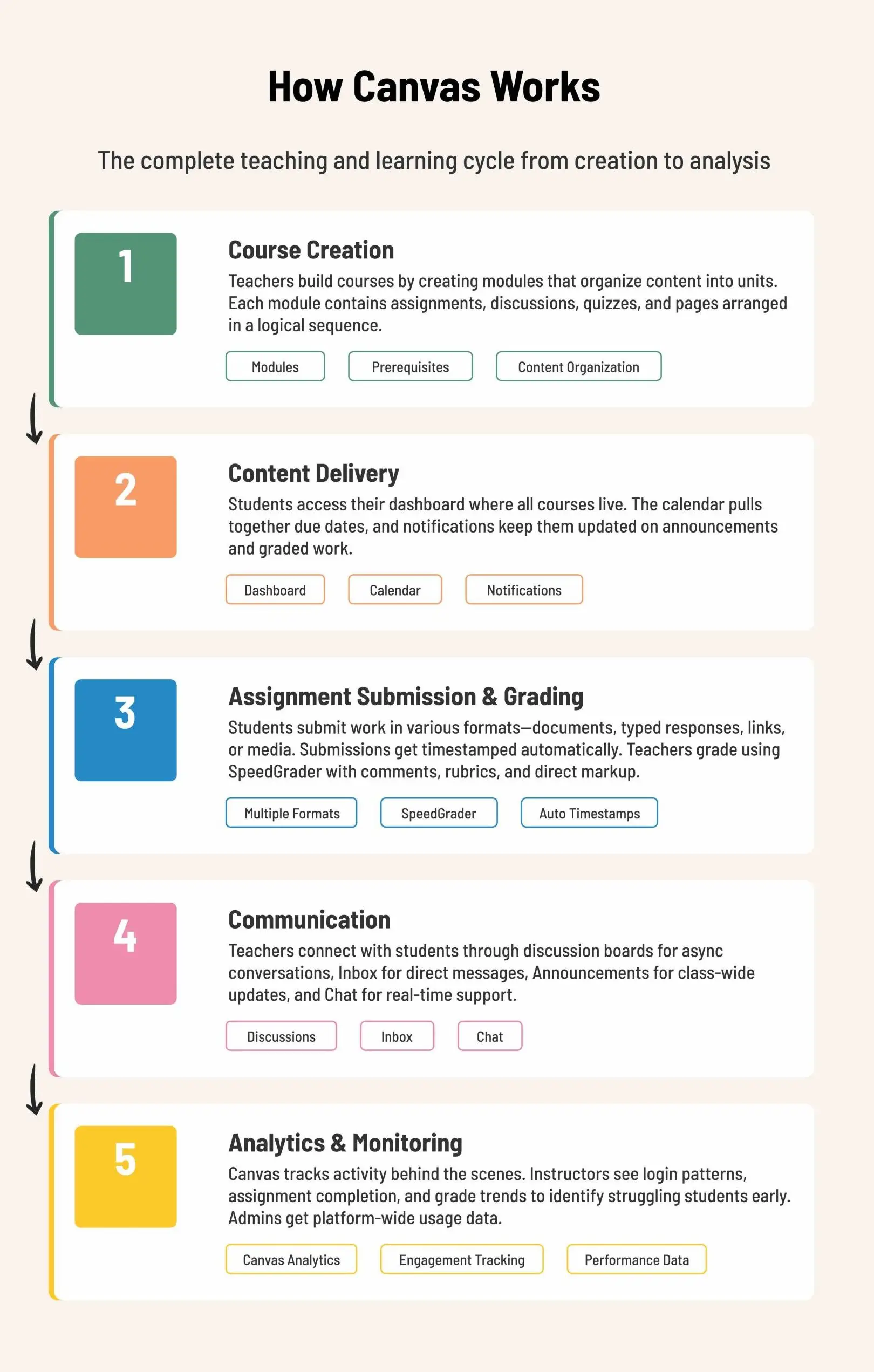
Canvas supports the full teaching and learning lifecycle — from building courses and delivering content to grading, communication, and performance analytics.
How Does Canvas Work?
Canvas supports the teaching and learning process from start to finish. Here’s how that works in practice.
Course Creation
Teachers break courses into modules — one module per unit, typically. They can use weekly modules or topic-based modules, depending on the course design. Each module contains whatever students need for that section: assignments, discussion threads, quizzes, and instructional pages.
Here’s what makes modules useful: you can require students to complete things before moving on. So nobody takes the final quiz without doing the practice quiz first. Or students can’t see Module 3 until they’ve submitted everything in Module 2. This saves teachers from having to babysit everyone’s progress.
Content Delivery
When students log in, they land on their dashboard — a single place where all their courses live. The Canvas calendar pulls together due dates from every class they’re enrolled in, and the notification system keeps them updated on new announcements, deadlines, and graded work.
From the dashboard, it’s a simple path: click into a course, find the relevant module, and access what they need.
Assignment Submission and Grading
Assignments work with different types of submissions. Students upload files, type answers directly into Canvas, link to external work, or submit audio and video recordings. The system tracks when everything comes in.
Teachers see new submissions in their gradebook. They grade using SpeedGrader — a tool that lets them write feedback, use scoring rubrics, and add notes directly on student documents. Final grades get calculated automatically once the teacher decides how much each assignment type should count.
Communication
Canvas gives teachers a few different ways to stay in touch with students, and most educators end up using more than one. Discussion boards are great for conversations that don’t require real-time interaction. The Inbox works like internal messaging for direct questions. Announcements go out to the whole class at once. And if someone needs to talk live, Chat is there for that too.
Analytics and Monitoring
Canvas tracks what happens in courses. Teachers open the analytics dashboard to check student activity — login frequency, whether people are submitting work, and how grades trend week to week. This option makes it simpler to notice when someone starts struggling.
Administrators see system-wide information, like total usage across campus, which courses get the most activity, and where engagement drops. They use this to evaluate whether Canvas works for their institution.
Canvas LMS Features
Canvas packs quite a bit into one platform. Here’s a breakdown of the Canvas LMS features that institutions actually rely on day-to-day.
- Course Modules. Modules group content by week, topic, or unit. The system allows instructors to set prerequisites that control content access based on completion or performance. Scheduled availability determines when students can view materials.
- Assignments and Quizzes. Assignment submission supports various formats: document uploads, text entries, URL submissions, and media recordings. The platform includes rubric tools, peer review workflows, and flexible due date options. New Quizzes offers expanded question types, randomization through question banks, and automatic scoring for objective questions.
- Gradebook. Automatic grade calculation uses instructor-configured weights and categories. The gradebook handles points, percentages, letter grades, and institution-specific grading schemes.
- Discussions. Discussion forums host class conversations with threaded reply organization. Grading options exist for participation tracking, and instructors control discussion structure and settings.
- Calendar and Notifications. The integrated calendar displays all course deadlines and scheduled events in a consolidated view. Notifications inform students about new announcements, upcoming deadlines, and returned assignments.
- Integrations and LTI Tools. The Canvas App Center provides access to hundreds of external applications. Common integrations include video platforms, plagiarism checkers, and digital textbooks. These connections use LTI standards for interoperability.
- Mobile Apps. Three dedicated applications exist: Canvas Teacher for instructors, Canvas Student for learners, and Canvas Parent for guardians. All three function on iOS and Android operating systems.
Schools selecting features matched to their teaching methods generally outperform those attempting to deploy all capabilities simultaneously. For comprehensive learning management system information, our guide to LMS fundamentals offers a detailed exploration.
How to Use Canvas (Basic Overview)
The experience in Canvas changes quite a bit depending on your role. Here’s a quick look at how to use Canvas if you’re an instructor, a student, or an administrator.
For Instructors
Teachers get into Canvas through their school’s URL and head straight to the course editor. Building a course usually goes something like this: set up modules to organize content by topic or timeline, upload materials or link to outside resources, create assignments with clear submission requirements, put together quizzes, and configure the gradebook so that grades calculate the way you want.
Once the course is live, the day-to-day looks like grading submissions in SpeedGrader, jumping into discussions, answering student questions through the Inbox, and keeping an eye on Canvas Analytics to see how engagement is going. And if you teach the same course again next semester, the Course Import Tool means you don’t have to rebuild everything from scratch.
For Students
Everything starts at the dashboard. That’s where students see all their courses, what’s coming up in their To Do list, and any recent announcements. From there, it’s pretty simple: click into a course, find the right module, and look at what needs to be done.
The actual workflow is pretty intuitive — read the materials, finish the assignment, submit before the deadline, check grades in the gradebook, and reach out to the instructor through the Inbox if something comes up. The calendar is handy for keeping track of deadlines across different classes.
One thing students should do early on: go into notification settings and customize them. By default, Canvas can send a lot of alerts, and having all of them come through at once from multiple courses gets overwhelming fast.
For Administrators
Admin work happens at a higher level. That means managing user accounts, setting up course shells each term, putting the school’s branding on the platform, connecting Canvas to student information systems, turning on external apps, and pulling together reports on how things are going.
Admins also build course templates so there’s consistency across departments, set default settings that apply to new courses automatically, and dig into institution-wide analytics to see the bigger picture.
What Is Canvas Software — and What It Is Not
Getting clear on what Canvas actually does — and doesn’t do — saves a lot of headaches down the line.
What Canvas Doesn’t Provide
- Authoring tools for interactive content. If you need to build interactive lessons, simulations, or H5P activities, you’ll need separate software for that. Canvas is where you put the finished product, not where you create it from scratch.
- Extensive video hosting. Canvas can embed videos that live on other platforms, but it’s not a video hosting service. Most schools use dedicated video tools and link them to Canvas.
- Learning experience platform (LXP) capabilities. LXPs are built around letting learners discover content on their own terms. Canvas works differently — it follows the path that the instructor sets up, which is how most traditional academic programs are structured.
If you’re wondering whether Canvas or an LXP makes more sense for your organization, check out our LMS vs LXP comparison — it lays out the key differences.
What Canvas Does Best
Canvas is well-suited to serve as the foundation for delivering courses. Materials stay organized in one system. The assignment process runs from beginning to end — submission, grading, and grade calculation. Student activity and progress are monitored, communication channels exist between teachers and students, and learning data becomes available to instructors.
The platform provides structure without controlling content. It’s a framework rather than a prescription. Once you understand Canvas’s capabilities and boundaries, figuring out additional tools becomes easier. Many schools pair Canvas with specialized software — video hosting lives elsewhere, interactive content gets created in other tools, and advanced analytics come from dedicated platforms.
Canvas LMS Pros and Limitations
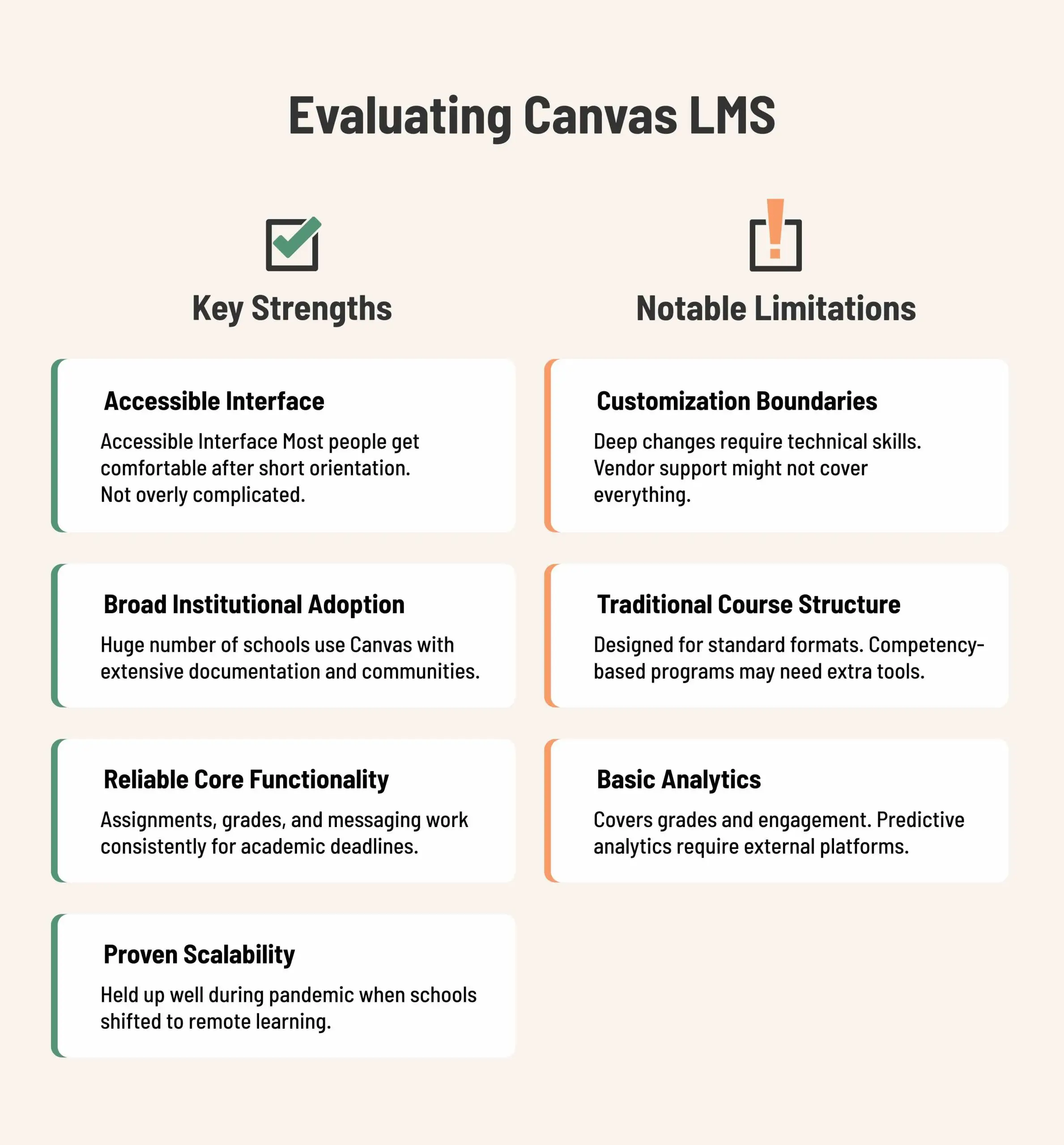
Canvas has its strengths, and there are also areas where its capabilities may vary depending on the use case. Below is a closer look at both.
Key Strengths
- Accessible interface. Most people can get comfortable with Canvas after a short orientation. It’s not overly complicated, which cuts down on training time and support requests.
- Broad institutional adoption. A huge number of schools already use Canvas, which means there’s a wealth of documentation, active communities, and people who already know the platform well.
- Reliable core functionality. The basics — submitting assignments, calculating grades, sending messages — work consistently. That matters a lot when you’re dealing with academic deadlines.
- Proven scalability. Canvas held up well during the pandemic when schools were shifting to remote learning en masse. That’s not something every platform can say.
Notable Limitations
- Customization boundaries. If you want to make big changes to how Canvas looks or works, you’ll need technical skills — and even then, vendor support might not cover everything.
- Traditional course structure. Canvas is designed around standard course formats. If your school runs competency-based programs or adaptive learning paths, you might need to bring in extra tools to make it work.
- Basic analytics. The reporting Canvas offers out-of-the-box coverage OF grades and engagement, but if you need predictive analytics or deeper insights into student success, you’ll likely need to pull data into another platform.
At Racoon Gang, we help schools work through these trade-offs regularly. Sometimes that means building custom integrations to stretch what Canvas can do. Other times, it means being honest that Canvas might not be the right fit. If you’re weighing your options, our overview of leading Canvas alternatives is worth a read.
Conclusion
Canvas LMS gives institutions a solid, cloud-based infrastructure for running courses and managing the academic side of things. Its accessibility, dependability, and the sheer number of schools already using it make it a strong choice — especially for organizations that value ease of use and a big support community.
That said, what is Canvas for schools really comes down to is context. If your institution has very specific needs, uses non-traditional teaching models, or needs a lot of customization, it’s worth taking a hard look at whether Canvas’s standard setup gives you enough room to work with.
Picking an LMS is a decision that deserves real analysis — not just going with whatever’s most popular. Think about how your teachers work, what your students need, what your technical team can support, and where the institution is headed. Canvas is one strong option in the mix. The right choice comes from matching the platform to your actual situation.