







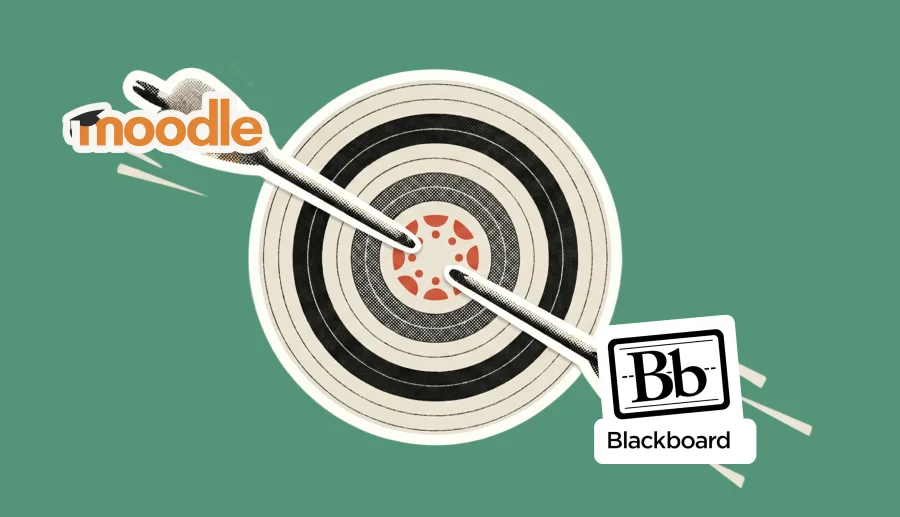
Planning a Canvas LMS migration is no longer optional for institutions still running Blackboard, and most are now racing to migrate to Canvas before Blackboard Original retires by the end of 2026. Anthology filed for Chapter 11 bankruptcy in September 2025, and universities across the US have already published shutdown dates. Institutions still deciding now face a choice: set their own migration schedule, or work against someone else’s deadline.
More than 3,000 universities now run on Canvas, and that number keeps climbing as the deadline approaches.
Why migrations go wrong
Most Canvas migrations run into trouble for reasons unrelated to content volume — a university with 3,000 courses and one with 300 hit the same issues. The real driver is planning. Skipping the audit, underestimating integration work, or treating a content export as the whole project is what turns a migration chaotic.
A migration that works tends to look uneventful from the outside. Courses open on day one with content where instructors expect to find it, grades sync to the SIS without a flood of support tickets, and faculty have already seen Canvas in training before go-live arrives.
A course export covers files, assignments, and quiz shells. SIS integration, SSO setup, and third-party tool configurations require separate work, planned and tested well before go-live — work that defines an actual migration plan.
Our team has run Canvas migrations from Blackboard, Moodle, and Brightspace — for single departments and system-wide rollouts across dozens of campuses. This guide walks through what we’ve learned, from audit to go-live, to help you build a realistic plan and spot the gaps early.
TL;DR
- Canvas LMS migration involves far more than a content export: SIS integration, SSO, LTI tools, and faculty training all need separate planning.
- Blackboard and Moodle migrations differ in where the manual work falls: Grade Center and Collaborate for Blackboard, plugins and H5P content for Moodle.
- A 10-step sequence — audit, plan, execute, train, go live — keeps institution-wide migrations on schedule.
- Timelines range from 2–4 months for small institutions to 8–18 months for large ones, driven mainly by integration count and faculty readiness.
- A migration checklist covering pre-, during-, and post-migration tasks catches gaps before they become support tickets.
- The most common mistakes — skipping the audit, delaying SIS integration, undertested LTI tools, no rollback plan — are avoidable with early planning.
What Is Canvas LMS Migration?
Canvas LMS migration is the process of transferring course content, user accounts, enrollment data, integrations, and configuration settings from an existing LMS — typically Blackboard or Moodle — into Canvas. That includes course shells, gradebooks, single sign-on, LTI tools, and SIS connections, alongside the files themselves.
Migrating a handful of courses and migrating an institution are different projects, even though both get called “migration.”
A content-only move shifts course materials between platforms — useful for a pilot, a single department, or faculty testing Canvas before a wider rollout.
A full institutional migration adds SIS integration, SSO, enrollment sync, LTI configuration, accessibility remediation, and faculty training departmentwide.
Most planning mistakes later in this guide come from treating the second project like the first.
Why Institutions Are Migrating to Canvas
The market data tells a fairly blunt story. According to Edutechnica’s Spring 2025 report, Canvas now holds a greater share of US higher education enrollment than Blackboard, Moodle, and D2L Brightspace combined — a first for any single LMS.
Faster faculty onboarding
Timing explains the urgency. What drives the platform choice, once institutions start looking seriously, is something different — faculty tend to describe Canvas as faster to learn, with new instructors often building a working course in hours instead of days. That matters when a whole faculty needs to get comfortable with a new system before classes start.
Cleaner integration ecosystem
Canvas’s LTI 1.3 implementation connects with tools most campuses already depend on — Turnitin, Zoom, Kaltura, library databases — and most LTI tools in use have a documented path into Canvas. Custom Blackboard building blocks, by contrast, often require vendor-specific expertise to maintain or migrate.
Lower total cost over time
What institutions consistently report after switching is fewer support escalations and faster vendor response times. For IT directors weighing a Canvas LMS ROI case, that support difference often outweighs the headline licensing cost.
Our Canvas vs. Blackboard comparison covers these differences in more detail.
Blackboard to Canvas Migration: What to Expect
A Blackboard to Canvas migration goes more smoothly than people expect for some content types — and worse for others. Most of the manual work hides in that gap.
What migrates cleanly
- Course files, most assignments, and discussion boards — through a standard Canvas course import.
- Basic quiz formats — with caveats on question types.
Calculated formula questions and certain matching formats sometimes need rebuilding. Partial-credit settings can reset to defaults. Running a test import of a few representative courses early helps catalog exactly which quiz types survive.
Where the manual work is
Grade Center — weighted categories, calculated columns, and custom grading schemes usually need manual rebuilding in Canvas’s gradebook.
Collaborate recordings — tied to Blackboard’s own infrastructure, these need manual handling. Faculty who want to keep them need to download and re-host each one — often in Canvas Studio or a connected video platform — before the old environment goes dark.
SafeAssign — submissions and originality reports are tied to Blackboard’s infrastructure and need archiving separately for any retention requirement.
Terminology that changes
Part of what makes a migration feel disorienting for faculty is that familiar concepts have different names in Canvas. A quick reference helps when writing training materials:
| Blackboard term | Canvas equivalent | What changes |
| Organizations | Sub-accounts | More hierarchical, tied into admin permissions |
| Content Collection | Files | Per-course or per-user, no shared repository |
| Grade Center | Gradebook | Weighted groups need manual rebuilding |
| Collaborate | Canvas Studio or BigBlueButton (LTI) | No native equivalent — requires configuration |
| Building Blocks | LTI tools | Rarely a one-to-one replacement |
Moodle to Canvas Migration: What to Expect
A Moodle to Canvas migration starts from a different place than a Blackboard one. Moodle’s flexibility cuts both ways — the same plugin ecosystem that makes it customizable also makes some content hard to bring across cleanly.
What migrates without major issues
- Pages, files, assignments, and forums — via Moodle’s .mbz backup format.
- Basic quiz formats — with some caveats.
Moodle’s quiz engine supports types with no direct Canvas equivalent: drag-and-drop, embedded answers (Cloze), some calculated variants. These need rebuilding as a different question type, or restructuring altogether.
Plugin dependencies
Moodle relies heavily on third-party plugins, and institutional knowledge about a given plugin’s configuration doesn’t always transfer cleanly between staff over time, which can make documentation harder to track down during migration planning.
Canvas works almost entirely through LTI integrations. The work shifts from converting plugins one by one to figuring out which ones faculty actually rely on, then finding or building an LTI equivalent.
H5P is the most common example. Interactive H5P content requires rebuilding through a Canvas-compatible H5P LTI tool — the Moodle version arrives as static files.
Gradebook and activity types
Moodle’s gradebook supports custom aggregation methods and category weighting with logic that differs from Canvas’s gradebook structure. Schemes built up over several years sometimes need a full redesign to fit that structure.
Activity types follow a similar pattern:
| Moodle activity | Canvas equivalent |
| Forum | Discussions |
| Workshop | Peer-reviewed assignments |
| Choice | Polls / surveys via LTI |
Faculty will notice the workflow differences even when the purpose stays the same. Our piece on Moodle’s benefits covers some of the same flexibility that creates this complexity.
Enrollment data
Enrollment data is the part most often overlooked — it sits outside the course export entirely. Syncing enrollment and role data from the SIS works better than carrying it over from Moodle. Getting that sync configured correctly — including how cross-listed and combined courses get handled — is worth sorting out before content migration starts.
Canvas LMS Migration Step by Step
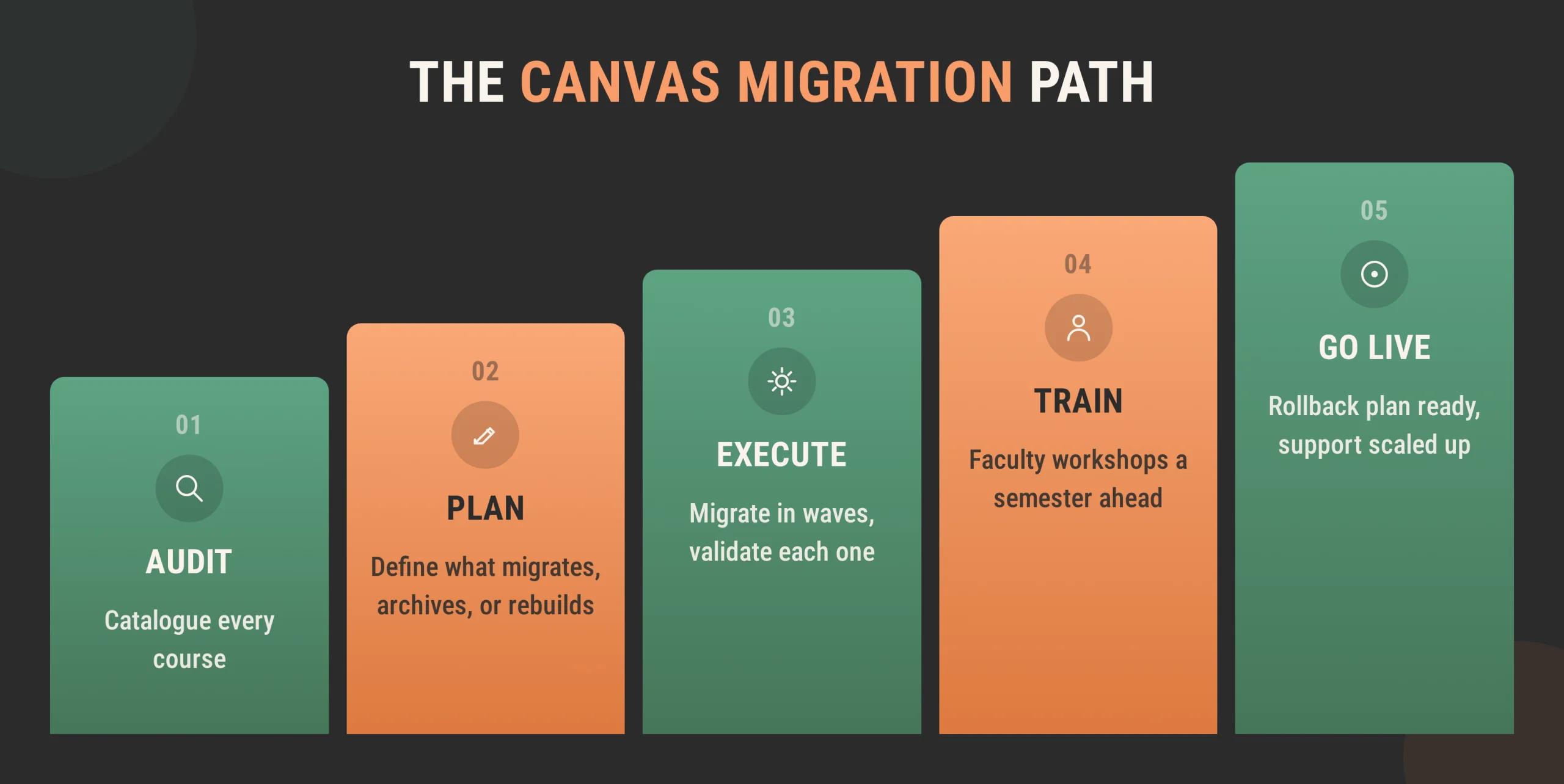
Every Canvas migration comes down to the same backbone: audit, plan, execute, train, go live. The order matters more than people expect — skipping to execution before the audit and plan stages are done is a common reason migrations run over schedule.
Here’s the sequence our team follows, roughly how we’d approach an LMS migration from the first call onward.
Step 1: Audit your current LMS content
Before anything moves, someone needs to go through the entire current LMS — every course catalogued by when it was last taught, active courses separated from inactive ones, content tied to tools with no clean path into Canvas flagged.
Courses last taught three or more years ago are archive candidates — moving them into Canvas adds clutter without adding value.
Step 2: Define migration scope
Scope decisions made here save weeks later. A solid migration plan spells out:
- Which courses migrate as-is
- Which get archived as read-only exports
- Which get rebuilt from scratch
Some courses are old enough — or built on tools different enough from Canvas — that rebuilding beats fixing a broken import. Scope also covers historical data: how many semesters of gradebook history you need, and whether it has to live inside Canvas or can be archived for compliance.
Step 3: Choose migration method
- Manual export/import — works well for a handful of courses; department-scale and above calls for a different approach.
- Automated tools — batch-process hundreds of courses against a mapping you define once.
- Vendor-assisted migration — a partner handles execution while your team focuses on review and training; fits institution-wide projects against a fixed deadline.
Step 4: Set up the Canvas environment
SIS integration, SSO, sub-accounts, and role structures get configured here — and this needs to happen before content moves in bulk.
Sub-account structure is worth getting right early. It shapes permissions, branding, and reporting across colleges or departments. Restructuring it later, after hundreds of courses are already inside, is painful and avoidable.
Step 5: Execute content migration
Migration runs in waves, by department or college, so issues surface on a manageable scale.
Every wave needs validation: a spot-check for broken links, missing media, and quiz integrity before the next batch goes through. Catching a systemic issue in wave one beats fixing it after wave twelve.
Step 6: Migrate users and enrollment data
User accounts and enrollment data should sync directly from your SIS or HR system.
This stage is where cross-listed courses, combined sections, and non-standard enrollment types — auditors, TAs, guest access — tend to surface problems the audit missed. Testing the sync against a handful of real courses before full rollout catches most issues while they’re cheap to fix.
Step 7: Migrate integrations
LTI tools — Turnitin, Zoom, Kaltura, library systems, anything else faculty depend on — need reconfiguring inside Canvas, with grade passback tested for each one.
This step routinely takes longer than people budget for, partly because it means coordinating with third-party vendors on their own timelines.
Step 8: Run quality assurance
QA here means testing courses the way a student and an instructor would — verifying the experience end to end, beyond a successful import check.
That includes verifying grade passback end to end, checking migrated content against accessibility standards, and letting a small faculty group test their own courses before the wider rollout. They’ll catch things automated checks miss.
Step 9: Train faculty and staff
Training works best starting well before go-live — ideally a full semester out.
Faculty who’ve already logged into Canvas, found their migrated course, and worked through a short orientation arrive on day one with fewer questions and less frustration. That gap shows up directly in support ticket volume during the project’s busiest week.
Step 10: Go live and monitor
Go-live needs a defined rollback plan, even if you never use it. Institutions that skip this often discover, mid-crisis, that nobody has an answer for what breaks on day one.
Staff support channels more heavily for the first two to three weeks. A post-migration review a month later catches issues that only surface once real teaching is underway.
LMS Migration Checklist for Canvas
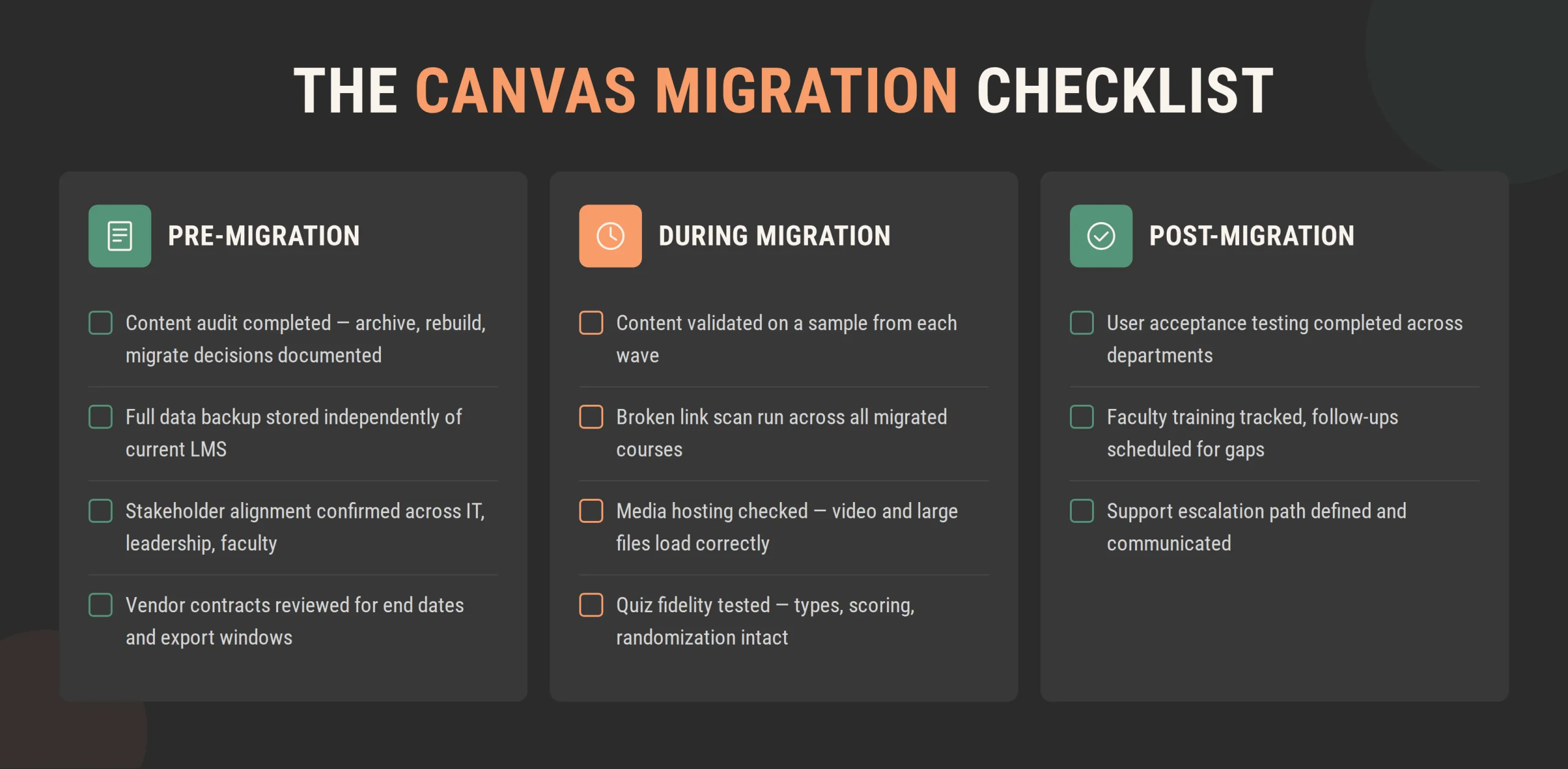
A Canvas LMS migration checklist works alongside the planning above as a gut-check at each project phase.
Pre-migration
- Content audit completed, with archive / rebuild / migrate decisions documented.
- Full data backup stored independently of the current LMS.
- Stakeholder alignment confirmed across IT, academic leadership, and faculty.
- Vendor contracts reviewed for end dates, export windows, and early-termination terms.
During migration
- Content validated on a sample from each wave before moving to the next.
- Broken link scan run across all migrated courses.
- Media hosting checked — videos, embedded files, large attachments load in Canvas.
- Quiz fidelity tested — question types, scoring, and randomization behave as expected.
Post-migration
- User acceptance testing completed with a faculty group spanning different departments.
- Faculty training completion tracked, follow-up sessions scheduled for gaps.
- Support escalation path defined and communicated before go-live.
Common Canvas Migration Mistakes
1. Migrating without auditing first
Institutions that skip the audit carry years of inactive courses into Canvas alongside active ones. Faculty end up searching for their courses among hundreds of unreviewed archived shells.
2. Leaving SIS integration until after content migration
This surfaces at the worst moment — the first week of classes, when grade sync failures hit and the help desk floods. SIS integration touches enrollment, sections, and grade passback. All of it needs to work before the first assignment is due.
3. Underestimating faculty training time
Faculty walking into a new platform cold during the first week of a semester generate a disproportionate share of support tickets. That volume lands on the same IT team handling whatever else breaks during go-live. Starting training early cuts the load during the busiest week.
4. Not testing LTI tools before go-live
A Zoom integration producing no meeting links, a Turnitin assignment with failed grade passback, a library link returning a 404 — each is a five-minute fix alone. Found across dozens of courses on day one, they overwhelm a support team almost immediately.
5. Ignoring accessibility during migration
Whatever issues existed in the old LMS move into the new one — and migration is one of the most cost-effective moments to fix them, since content is already being touched. Checking alt text, captions, and document structure here costs far less than a standalone remediation project later.
6. Launching without a rollback plan
If a critical integration fails on day one, is there a path back to the old LMS for affected courses, even temporarily? Most institutions answer that question for the first time during the crisis — exactly the wrong moment.
Canvas Migration Timeline: How Long Does It Take?
How long a Canvas LMS migration takes depends more on integration count and faculty readiness than raw course numbers. Still, course count is the most useful starting point.
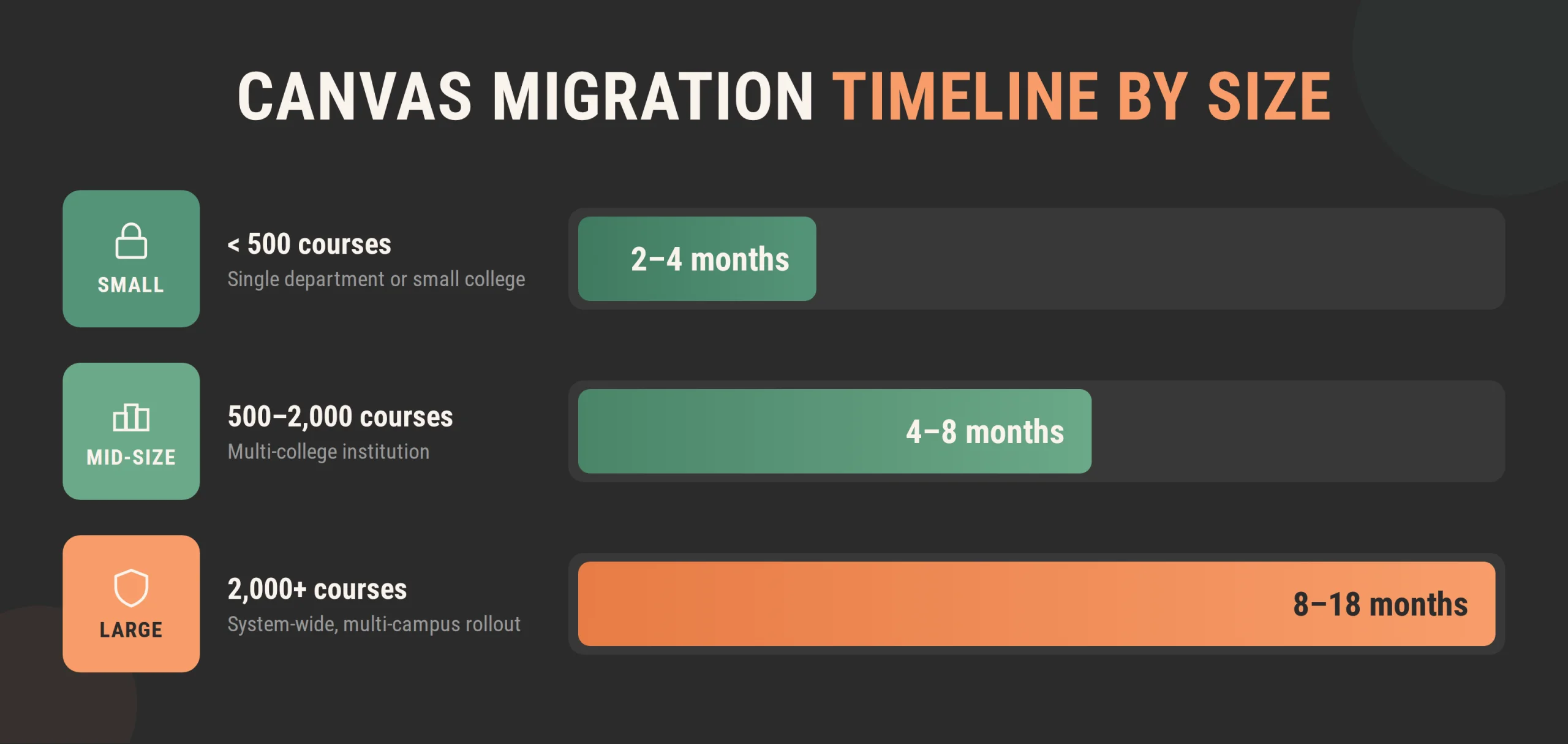
| Institution size | Course count | Typical timeline |
| Small | Fewer than 500 courses | 2–4 months |
| Mid-size | 500–2,000 courses | 4–8 months |
| Large | 2,000+ courses | 8–18 months |
Several factors push timelines toward either end of these ranges:
- Content complexity. Straightforward courses — files, assignments, basic quizzes — migrate faster than ones built on Blackboard building blocks or Moodle plugins that need rebuilding.
- Integration count. Each LTI tool, each SIS connection, and each SSO configuration adds testing time. An institution with 300 courses and 15 LTI integrations can take longer than one with 800 courses and three.
- Faculty readiness. Starting faculty communication and training a full semester ahead tends to mean hitting the target date. Waiting until courses are in Canvas to explain what’s changed usually means adoption lags, even when go-live arrives on schedule.
- SIS configuration complexity. Multiple SIS systems after a merger, separately administered campuses, non-standard term structures, or enrollment rules requiring custom mapping to Canvas’s defaults all add time.
Canvas LMS Integration Setup During Migration
Getting Canvas LMS setup right means doing integration work first and content work second. Most institutions prioritize content because it feels like the “real” migration — and that sequencing is where rework tends to accumulate.
SIS integration
Whether your institution runs Banner, Ellucian Colleague, Workday Student, or something else, the SIS connection determines how courses, sections, and enrollments get created in Canvas.
Configuring and testing the SIS connection before content migration begins saves significant cleanup — courses set up manually during migration and then again automatically once the SIS sync goes live create duplicates someone has to sort through.
SSO setup
SAML-based single sign-on needs to work before faculty start reviewing migrated content. A separate Canvas-only login creates confusion about which credentials to use.
Testing SSO with a handful of admin accounts before opening it to faculty catches configuration issues — incorrect attribute mapping, for instance — while the stakes are still low.
LTI 1.3 tools
Turnitin, Zoom, Kaltura, library databases, dozens of others — each one needs configuring and testing individually. Sharing a standard is the starting point, and actual functionality requires verification per tool.
Grade passback deserves its own test pass per tool. Submission success and grade passback are separate functions — an assignment can accept a student submission and still return no grade to the instructor, which generates support tickets during the busiest week.
Why sequence matters
Course content that references an LTI tool, links to a library resource, or expects SIS-driven enrollment groups requires those connections to be live and tested first. Testing content against integrations added later just means running the same tests twice.
Getting Canvas implementation sequencing right saves significant rework downstream.
How Raccoon Gang Helps Organizations Migrate to Canvas
Everything in this guide reflects how our team approaches a Canvas migration project.
- Content audit and scoping. A typical engagement starts here — working through existing courses with the institution’s team to make the archive, rebuild, or migrate decisions described in Steps 1 and 2, before any content moves.
- Migration execution. Our specialists handle automated batch processes for straightforward content and manual rebuilding for courses tied to tools or structures specific to Blackboard, Moodle, or Brightspace. We’ve worked with all three as source platforms, so most of the quirks that catch first-time teams off guard are familiar territory.
- Integration setup. SIS connections, SSO configuration, LTI tool setup — this is the work our customers and partners lean on us most heavily for. It often requires coordinating across IT, the LMS team, and third-party vendors, and having someone who’s done it before tends to help.
- QA and accessibility. Both happen during the migration itself, folded into the same pass since content is already being touched — catching issues that would otherwise need their own budget line later.
- Training and post-go-live support. Faculty and administrator training runs as a mix of live workshops and self-paced materials. Post-migration support continues with defined SLAs, so issues that surface once real teaching is underway have a clear path to resolution.
Conclusion
Smooth Canvas migrations come from treating audit, planning, and integration setup as seriously as content migration itself — regardless of how many courses need to move.
A Canvas LMS migration succeeds or fails on decisions made months before any course moves, whether you’re a single department piloting Canvas or a system migrating thousands of courses across dozens of campuses.
There’s no single template that fits every institution. The right approach depends on your content complexity, integration count, and how ready your faculty are for the change. What stays constant is the discipline to work through each stage before rushing the next.
Institutions still running Blackboard are now working against a published retirement deadline. Starting today — before that deadline feels urgent — is how you end up setting your own timeline.
FAQ
How do you migrate from Blackboard to Canvas?
A Blackboard to Canvas migration starts with a content audit to determine what can be migrated, what needs rebuilding, and what should be archived. Course content can be imported into Canvas, while Blackboard-specific features such as Grade Center, Collaborate recordings, and custom tools require manual migration or replacement before launch.
How do you migrate from Moodle to Canvas?
A Moodle to Canvas migration typically uses Moodle’s .mbz backup format to transfer core course content. Some quiz types, H5P content, and plugin-based activities require manual rebuilding, while enrollment data is usually synchronized directly from the SIS rather than migrated from Moodle.
How long does a Canvas LMS migration take?
Canvas migration timelines depend on institution size and project complexity. Smaller implementations may take 2–4 months, while large, multi-campus migrations can take 8–18 months. Integrations, customizations, and faculty readiness often have a greater impact on the schedule than course volume alone.
What content does not migrate well to Canvas?
Platform-specific features generally require manual work. Blackboard Collaborate recordings, SafeAssign submissions, custom Building Blocks, Moodle H5P content, plugin-based activities, and unsupported quiz types often need to be recreated after migration.
What is a Canvas LMS migration checklist?
A Canvas LMS migration checklist outlines the key tasks before, during, and after migration, including content audits, data backups, validation, user acceptance testing, faculty training, and post-launch support to help ensure nothing critical is overlooked.
How much does Canvas migration cost?
Canvas migration costs vary based on the number of courses, integration complexity, migration approach, and implementation resources. Organizations should also consider the cost of delaying migration, particularly when moving from platforms approaching end-of-life.
Can you migrate courses from Canvas to another LMS?
Yes. Canvas courses can be exported as Common Cartridge files, which most modern LMS platforms support. However, platform-specific features, custom integrations, and certain assessment types often require manual adjustments after import.


- TL;DR
- What Is Canvas LMS Migration?
- Why Institutions Are Migrating to Canvas
- Blackboard to Canvas Migration: What to Expect
- Moodle to Canvas Migration: What to Expect
-
Canvas LMS Migration Step by Step
- Step 1: Audit your current LMS content
- Step 2: Define migration scope
- Step 3: Choose migration method
- Step 4: Set up the Canvas environment
- Step 5: Execute content migration
- Step 6: Migrate users and enrollment data
- Step 7: Migrate integrations
- Step 8: Run quality assurance
- Step 9: Train faculty and staff
- Step 10: Go live and monitor
- LMS Migration Checklist for Canvas
- Common Canvas Migration Mistakes
- Canvas Migration Timeline: How Long Does It Take?
- Canvas LMS Integration Setup During Migration
- How Raccoon Gang Helps Organizations Migrate to Canvas
- Conclusion